The complete Zephyr's Elixir guide
A top-to-bottom walkthrough of the app — from enabling USB debugging to writing your first recipe — written by the team that built it. Read it in order, or jump to the section you need.
Welcome to Zephyr's Elixir
It's good to have you here. Zephyr's Elixir was built around a simple question: why can't Android optimization feel as refined as the devices it runs on?
What you're looking at isn't another bare command-line frontend. It's a carefully crafted optimization suite that hides raw ADB power behind a calm, elegant interface — and treats your device with the respect it deserves.
What makes Zephyr's Elixir different
One-click depth
The main Optimize button runs a seven-stage pipeline across 120 tracked steps — cache cleanup, memory triage, deep storage clean, network tuning, system tuning, package compilation, DEX optimization.
Nothing hidden
Every step of a run is narrated live in the Optimization Console, in the order it happens — the apps being stopped, the space coming back, the compiler's own output line by line. No black box: every change made to your device is also recorded, command by command, in a timestamped log you can export and read.
Always reversible
Every change is tracked individually and has its own Reset. Before each operation, a Time Vial bottles your system settings — so you can see exactly what moved, and pour any of it back.
No root, no bootloader unlock
Zephyr's Elixir speaks only through ADB. No Magisk, no custom recovery, no tripped warranty. Enable USB debugging and you're ready — nothing else about the device changes.
Offline by design
No account, no analytics, no background telemetry. The app reaches the network for four named things only: the update check, license validation if you activate Pro, the cloud safety analysis once you allow it, and the community library when you open that tab.
Optimization as craft
You shouldn't need to memorize shell commands, chase outdated forum threads, or guess which package is safe to disable. Good software does the chasing for you.
First steps
Before Zephyr's Elixir can talk to your phone, your phone needs to know it's allowed to listen. This takes about two minutes and only has to be done once per device.
What you need
- A PC running Windows 10 (64-bit) or newer. ADB ships inside the app — nothing extra to install.
- A phone or tablet on Android 7.0 or newer. No root, no unlocked bootloader.
- A USB data cable for the first connection. After that, Wi-Fi will do.
Enable USB debugging
USB debugging is a built-in developer mode that lets a trusted computer send ADB commands to the device. It's part of vanilla Android — no modification, no risk.
- Open Settings on your phone.
- Scroll down and tap About phone.
- Find Build number. On some skins it's under Software information.
- Tap Build number seven times. Enter your PIN if asked. You'll see "You are now a developer!"
- Go back to Settings and open the new Developer options entry (usually under System).
- Turn on USB debugging. Accept the warning dialog.
- Optional but recommended: also turn on Stay awake, so the screen doesn't sleep while you're working.
Connect the cable
Plug your phone into the PC with the cable that came in the box, or any certified data cable. Cheap charge-only cables are the single most common reason the device doesn't show up.
The first time you connect, Android will ask you to confirm the pairing:
- A dialog titled "Allow USB debugging?" appears on the phone.
- Tick "Always allow from this computer" so you don't see it every time.
- Tap Allow.
Verify the connection
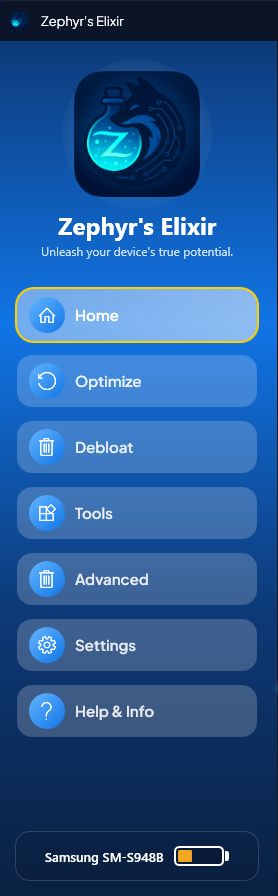
Zephyr's Elixir constantly watches for devices in the background. The sidebar at the left is the source of truth:
- Connected: the model name appears under the device icon, and a live battery bar fills up.
- Not connected: you see a muted "No device connected" message and action buttons stay disabled.
Optional: go wireless
Once the first USB handshake is done, the ADB session can keep running over Wi-Fi. The dialog asks which Android version you're on and picks the right method: a six-digit pairing code on Android 11 and newer, the classic port-based handshake on Android 10 and below. Either way, no cable is needed from then on.
Wireless setup in 30 seconds
- Make sure the phone and PC are on the same Wi-Fi network.
- On the phone, open Developer options and enable Wireless debugging.
- Tap Pair device with pairing code — you'll see an IP address, a port, and a six-digit code.
- On Home in Zephyr's Elixir, click Wireless connection, choose Android 11+, and enter the three values. The network prefix of the IP is filled in for you — only its last number is needed.
- Press Pair. The app handles pairing, connection, and verification. The cable becomes optional.
How it works, at a glance
A quick orientation to what's running under the hood and how the interface maps to it. Worth reading once — everything else in the app will make more sense afterward.
What ADB actually is
ADB stands for Android Debug Bridge. It's the official developer protocol Google ships inside Android itself — the same tool used by app developers, manufacturers, and Google's own QA teams. Zephyr's Elixir doesn't replace ADB: it orchestrates it.
Why this approach is safe
- It's Google's own protocol — not a hack, not a patched binary.
- It runs inside Android's existing permission sandbox. No root, no bootloader unlock, no warranty flag.
- Every command that changes something on your device is recorded in a diagnostic log you can export and read.
- Any setting the app changes can be reverted from the Advanced screen with one click.
The interface at a glance
The sidebar
The dark rail on the left is your navigation. Eight entries, always visible:
- Home — landing page, quick actions, device status.
- Optimize — the full seven-stage performance pipeline.
- Debloat — list, disable, uninstall and review user or system apps.
- Recipes — your one-tap automations, plus the community library others have shared.
- Tools — APK installer, file manager, ADB shell and power options, plus screen mirror and performance monitor on Pro.
- Advanced — granular tuning: private DNS, animation scales, Time Vials, and more.
- Settings — language, AI analysis, ADB status, diagnostic log export, license management.
- Help & Info — the in-app version of this guide. F1 brings you back any time.
At the bottom of the sidebar sits the live device card: model name and battery level, updated in real time. It's the fastest way to confirm the connection without leaving the current page.
Working with several devices
Connect as many phones and tablets as you like. Click the device card and a switcher opens, listing everything currently attached — model, serial and battery, with unauthorised devices clearly marked so you know which one still needs the Allow USB debugging tap.
One device is always the active one, and every screen follows it. Switch while Debloat is open and the app list reloads for the new phone; switch during a file transfer and the queue is cancelled rather than silently redirected. Nothing is ever sent to a device you didn't choose — the only place several devices work at the same time is a recipe run, where you pick the targets yourself.
The Optimization Console
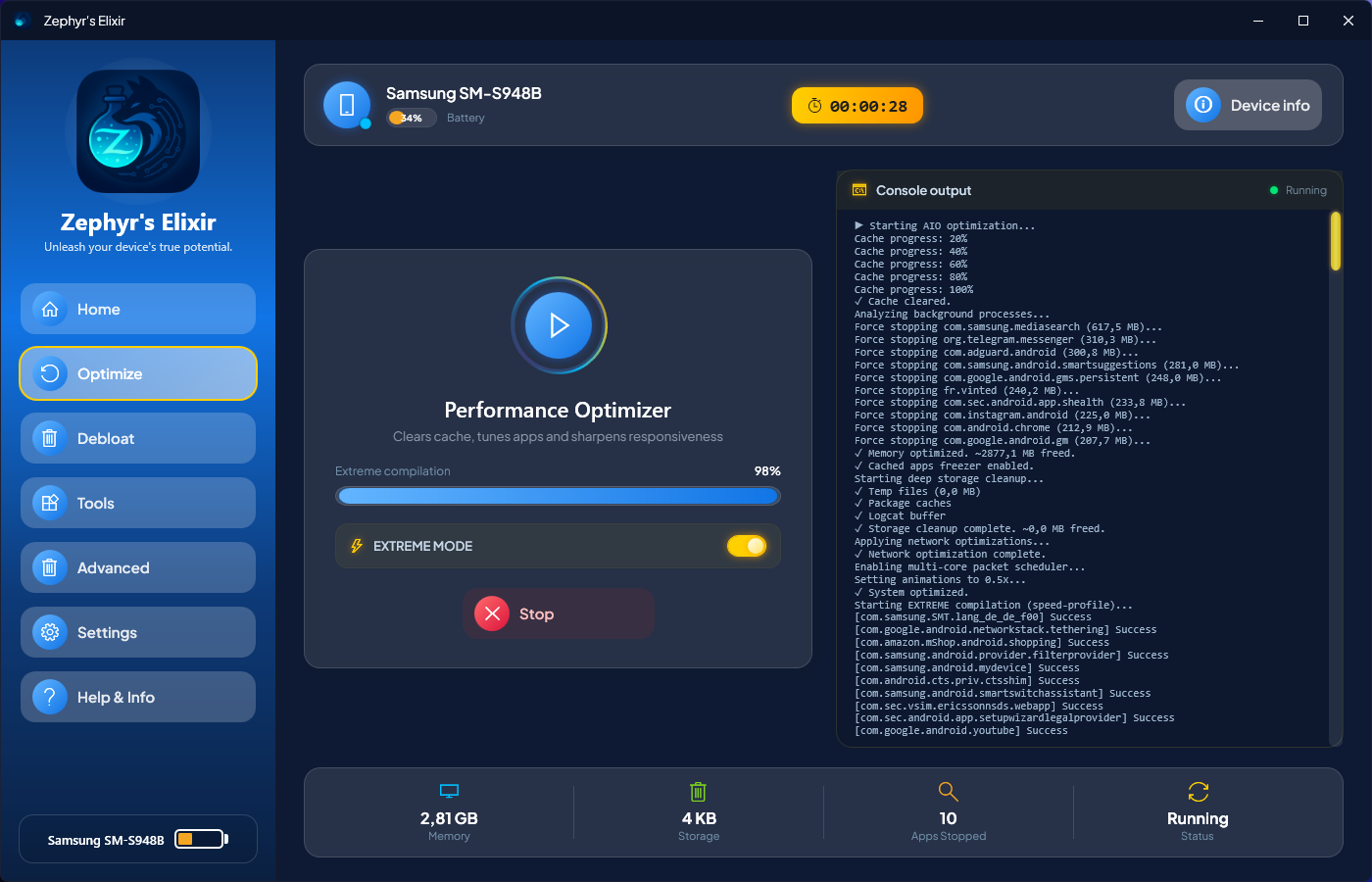
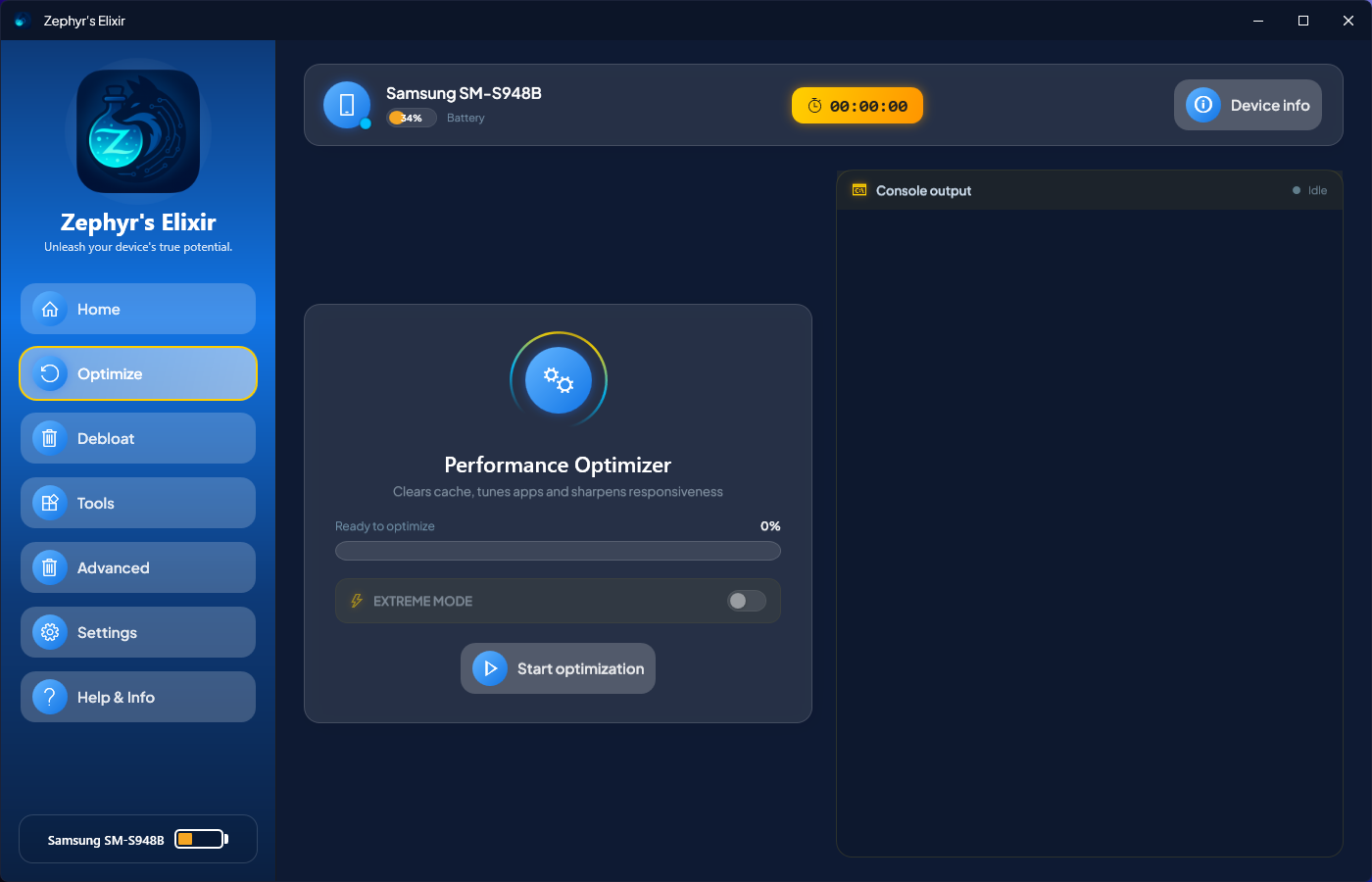
On the Optimize page, the dark panel at the right is the Console. It narrates the run as it happens — each stage as it starts, every app it stops, every cleanup it runs and how much memory and space came back — and while packages compile, Android's own compiler output streams in untouched. The commands themselves go to the diagnostic log, timestamped, one line each.
How optimization actually works
A single Optimize run walks through seven real stages, each touching a different subsystem:
Clears app caches in a hundred quick passes, closes background processes, force-stops the heaviest apps — never a critical one — and compiles installed packages with the profile-guided filter so cold starts feel snappier.
Empties the places Android quietly fills and rarely cleans — temporary files, ANR traces, crash dumps, the logcat buffer, the system dropbox — then runs a TRIM so the flash storage knows what is free.
Turns off always-on Wi-Fi and Bluetooth scanning, the poor-network watchdog and network recommendations — radios that otherwise wake up in the background long after you stopped using them.
Sets window, transition and animator scales to 0.5×, so every tap answers sooner. Android's own background DEX job then runs on the spot instead of waiting for the phone to sit on its charger overnight.
Standard vs Extreme
Standard optimization is what runs by default and is designed to be safe on every supported device — and it already does everything above. Extreme mode — exposed via the toggle on the Optimize page — changes the compilation stage: instead of compiling only the code paths Android has seen you use, it compiles every method of every package ahead of time. Far slower, far more thorough. It also enables the cached apps freezer and the multi-core packet scheduler where the device supports them. Extreme is a Pro-only feature and only activates when the Pro module is loaded.
If something feels off
Android is resilient. Nothing Zephyr's Elixir does requires root, so there's no partition to brick and no bootloop risk. That said, if you ever feel an app is misbehaving after an optimization run, recovery in order of how much you want to undo:
- Reboot the device. Most of what Optimize touches settles cleanly after one restart.
- Open Advanced and press Reset on the specific setting that's bothering you (DNS, animations, compilation, etc).
- Still not right? Press Reset all in Advanced — it undoes every change Zephyr's Elixir ever made to this device, putting each setting back to the value it actually had before, not to a guessed default.
Apps are the other half. Anything you disabled comes back from the Disabled filter in Debloat, and the History tab keeps a record of every uninstall, so you can restore one app or the whole list at any time.
Quick guide: from install to faster phone
Four steps. Roughly three minutes. The shortest path from just installed to noticeably faster device.
Step 1 — Connect the device
Plug in the USB cable and confirm the Allow USB debugging prompt on the phone. If you prefer wireless, click Wireless connection on the Home page and follow the short pairing flow.
Confirmation lives in the sidebar: when the model name replaces "No device connected" and the battery bar lights up, you're good to go.
Step 2 — Press Start Optimization
From Home, click Start optimization — or open the Optimize screen directly from the sidebar and press the large button there. Have a Pro license? You can flip the Extreme toggle before starting for a deeper pass.
Step 3 — Watch it work
The progress bar climbs through all 120 steps, with the step in progress named above it, while the Console narrates the run in real time. An on-screen timer tracks total run time. You can cancel at any point with Stop. Partial progress is already applied and always safe.
Step 4 — Reboot and enjoy
When the run completes, the report card summarizes what changed — and only what the phone actually did: the memory it freed, the storage it reclaimed, the compilation filter it used. A reboot is optional for standard mode but recommended after Extreme, so the system can rebuild package caches.
That's the whole loop. Come back and run it again whenever the device starts feeling sluggish — there's no harm in repeating.
Home
Your landing page. Version number, changelog shortcut, and the two primary actions every user needs.
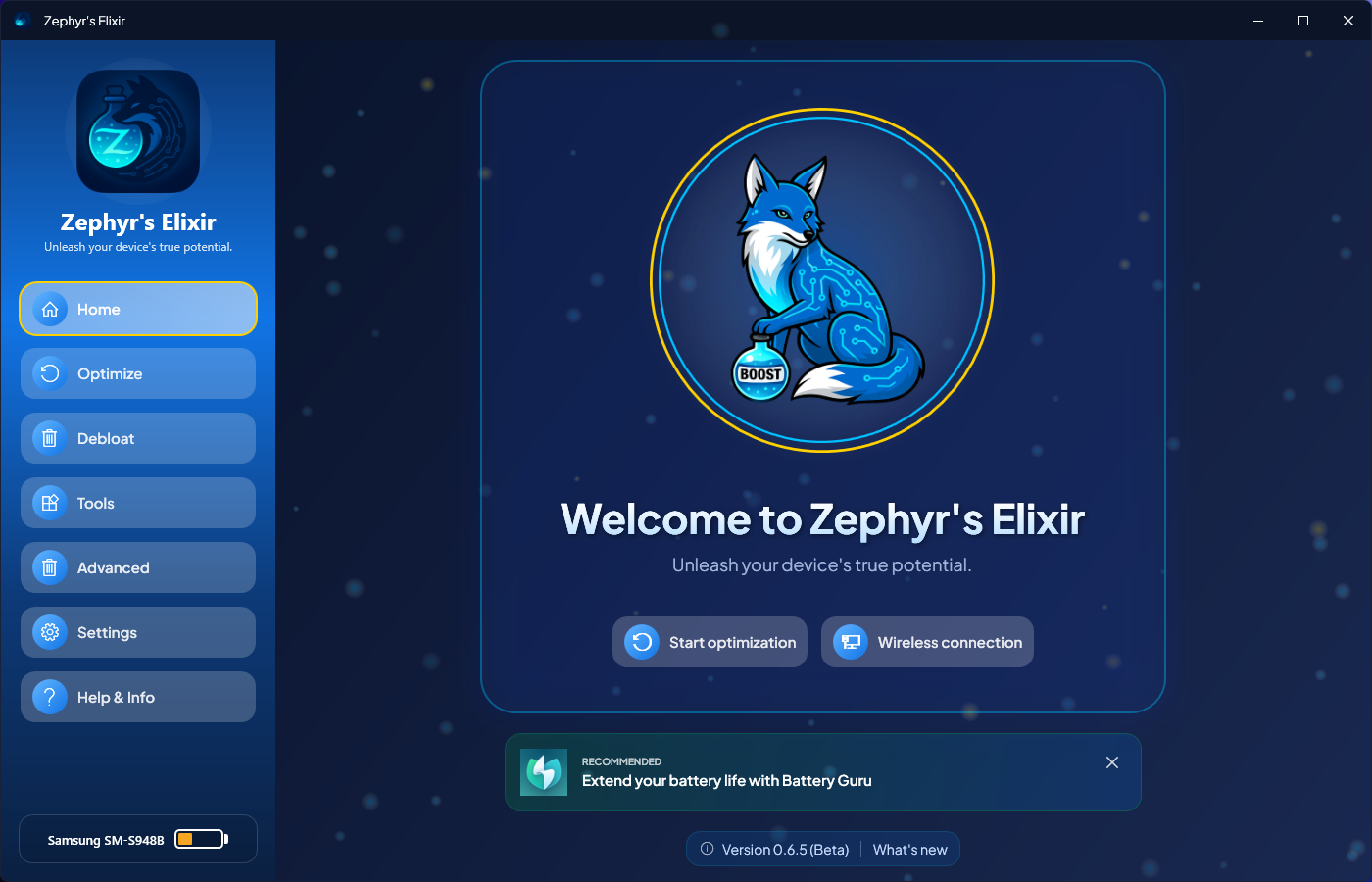
Start optimization
Jumps straight to the Optimize screen and kicks off a full standard run. This button is disabled until a device is connected — the tooltip will tell you so.
Wireless connection
Opens the guided wireless ADB dialog. On Android 11 and newer, enter the IP, port and six-digit code from Developer options → Wireless debugging; on Android 10 and below the dialog switches to the classic method, which asks for the device's IP after one USB handshake. Zephyr's Elixir handles the rest. In both cases the phone and the PC must be on the same network.
What's new
A link under the version number opens the full changelog dialog with every change since the previous release.
Optimize
The main performance workshop. One primary action, a progress bar, a live timer, and the full Optimization Console.
The seven-stage pipeline
Every run walks through the same seven stages, in order, across 120 tracked steps:
- Cache cleanup — a hundred passes over app and system caches, each asking Android for up to 1 TB of slack.
- Memory management — closes background processes and force-stops the heaviest apps, skipping anything critical.
- Deep storage clean — removes temporary files, ANR traces, crash dumps and old logs, then trims the flash storage.
- Network tuning — switches off always-on Wi-Fi and Bluetooth scanning, the poor-network watchdog and network recommendations.
- System tuning — sets the three animation scales to 0.5×.
- Package compilation — force-compiles installed packages so cold starts feel faster.
- DEX optimization — runs Android's background DEX job immediately, then hands the battery reading back to the real one.
Extreme mode Pro
Every run already clears caches, closes background processes and pushes the animation scales to 0.5×. What
the Extreme toggle changes is the compilation stage: instead of the profile-guided filter, which compiles
only the code paths Android has seen you use, every method of every package is compiled ahead of time with
the full speed filter. It takes considerably longer, and it is the most thorough pass Android
offers. Extreme also enables the cached apps freezer and the multi-core packet scheduler where the device
supports them.
Extreme requires an active Pro license and the Pro module loaded. Without both, the toggle stays dimmed and disabled — hovering it still tells you what Extreme would do.
Watching the run
Four live indicators keep you informed while the pipeline runs:
- A progress bar filling from 0 to 120 steps, with the live percentage and the step in progress.
- A total-elapsed timer, updated every second.
- The Console, narrating each stage and streaming the compiler's output in real time.
- The sidebar device card, confirming the phone is still connected and reporting battery level.
Debloat
Where you reclaim space and attention. Enumerates every package on the device, groups user vs system apps, and lets you disable or uninstall them cleanly.
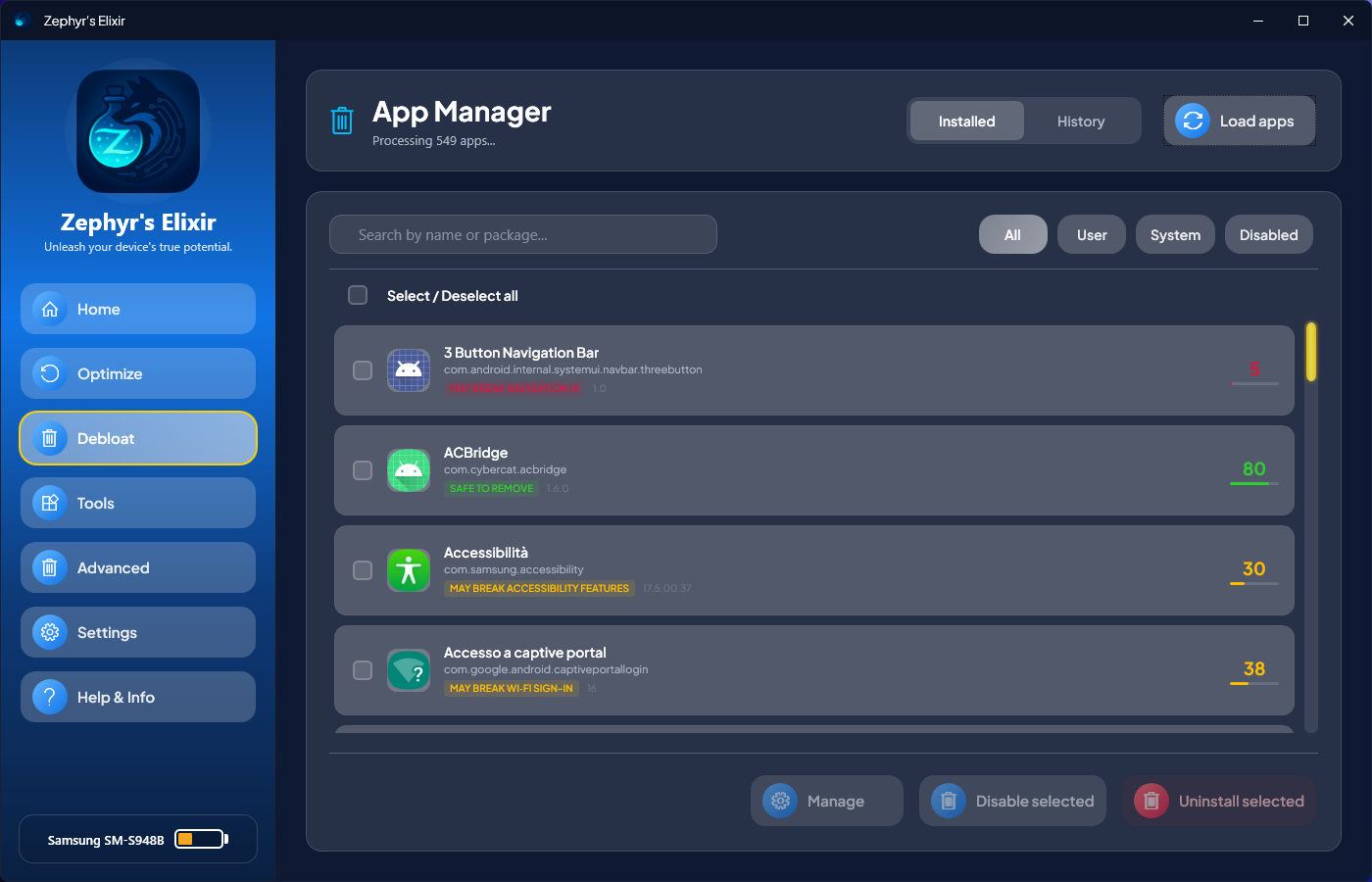
Loading the app list
The Load apps button queries the device for installed packages, pulls each icon asynchronously, and sorts the list alphabetically. Icons stream in as they arrive — no need to wait for the whole list before scrolling.
Filtering, search and sorting
The filter tabs split apps by type: All, User, System, or Disabled. A free-text search bar narrows results by name or package, and the sort menu reorders the list alphabetically, safest first, or riskiest first — handy when you want the AI's opinion to drive the session. A summary line above the list keeps count of what you're looking at: total apps, system, user and disabled.
Tick the checkboxes to build a multi-selection; the count updates live at the bottom, and every bulk action works on the whole selection at once.
Disable, uninstall, re-enable or inspect
With apps selected, four actions are available:
- Disable (
pm disable-user) keeps the APK on disk but stops the app from running. - Uninstall (
pm uninstall --user 0) removes it for the current user. - Enable brings anything you disabled back, one app or a whole selection at a time.
- Manage opens a details panel with permissions, standby bucket, and cloud-powered safety analysis.
Inside the details panel
Manage is where a single app gives up its secrets. The permissions list shows everything the app has been granted, with a switch per permission and one button to revoke them all. The standby bucket tells you how Android rations the app in the background — from Unrestricted down to Frozen — and lets you move it yourself. One bucket deserves a second look: Never launched, the phone's own admission that you have never once opened the app. Those are usually the safest things to strip out.
Quick actions on a single app
The details panel also gives you the things you'd otherwise open a terminal for: Launch the app, Force stop it, open its App info screen on the phone, Extract APK to keep a copy on your PC, or Clear data to return it to a fresh-install state. Clearing data asks for confirmation first — it cannot be undone.
Package lists and recipes
A selection you're happy with doesn't have to be rebuilt by hand on the next phone. Export writes it out as a plain package list you can read, edit or share, and Import reads one back in and ticks everything it finds on the device — telling you honestly how many entries matched. Save as recipe turns the same selection into a recipe, ready to run on any device with one tap.
The History tab
Every uninstall is logged with its package name, version, icon, and timestamp. Restoring is one click — or select several entries and restore them together. Apps you no longer care about can be forgotten in bulk to keep the list clean — forgetting an entry also deletes its saved APK, and the app asks before it does.
On Pro, the APK is backed up to your PC before removal, so an app can come back even if it has since vanished from the Play Store. Apps that ship as split bundles are backed up in full and reinstalled the way Android expects, not as a broken half-install.
Zephyr's Recipes
Everything you've just learned to do by hand, bottled once and poured on demand. A recipe is your setup — written down, repeatable, and portable from one phone to the next.
What's in a recipe
A recipe holds up to four steps, and runs them in this order. Every one of them is optional:
- Optimization — the full seven-stage pipeline, standard or Extreme Pro.
- Debloat — a list of packages to uninstall or disable, saved by name so it works on any device that has them.
- Tweaks — Private DNS, animation speed, and the privacy toggles Pro.
- Install apps — APKs to push onto the device. One on Free; a whole stack on Pro.
Give it a name, a short description, an author name if you plan to share it, and pick a glyph and colour so you recognise it at a glance. The debloat step doesn't make you type package names: From device lists the apps on the phone you have connected and lets you tick the ones to remove. That's the whole editor.
Running one
Press Run and you choose the targets: one device, or every phone plugged in right now. Each target gets its own progress card, its own live step description, and an honest verdict at the end — done, partial, or failed — so a phone that lost its cable can't hide inside a green tick. Devices run in parallel; steps within a device run in order.
Where recipes come from
- You write them — from scratch, or from a Debloat selection with Save as recipe.
- You import them — a recipe is a single .zerecipe file; export it, send it to a friend, keep it in your backups.
- The community shares them — the second tab of the Recipes page.
The community library
Browse what other people have brewed, sorted by top, recent or most used, and search by name. Get pulls a recipe straight into your library, where it's yours to edit. A like tells the author it was worth it — one per device, and you can take it back.
Sharing works the same way in reverse: Share uploads a recipe, Unpublish removes it again whenever you change your mind. There is no account and no sign-up — your install is identified by the same anonymous fingerprint the licence check uses, purely so that likes count once and uploads can be rate-limited. APKs never travel: a shared recipe carries the file names, not the files. Unpublishing takes the recipe out of the library for everyone new; people who already pressed Get keep their copy.
The Alchemist's Journey
Every recipe you pour counts as a brew, and brews earn rank — from Novice Brewer through Apprentice Alchemist, Elixir Artisan and Master Alchemist, up to Grand Elixirist. The bar at the top of the page tracks your library, your brews and how many recipes you've shared. It's a bit of fun, and it lives entirely on your PC.
Tools
Utilities that don't fit anywhere else but you'll reach for again and again. Worth a visit after you've gotten comfortable with the main screens.
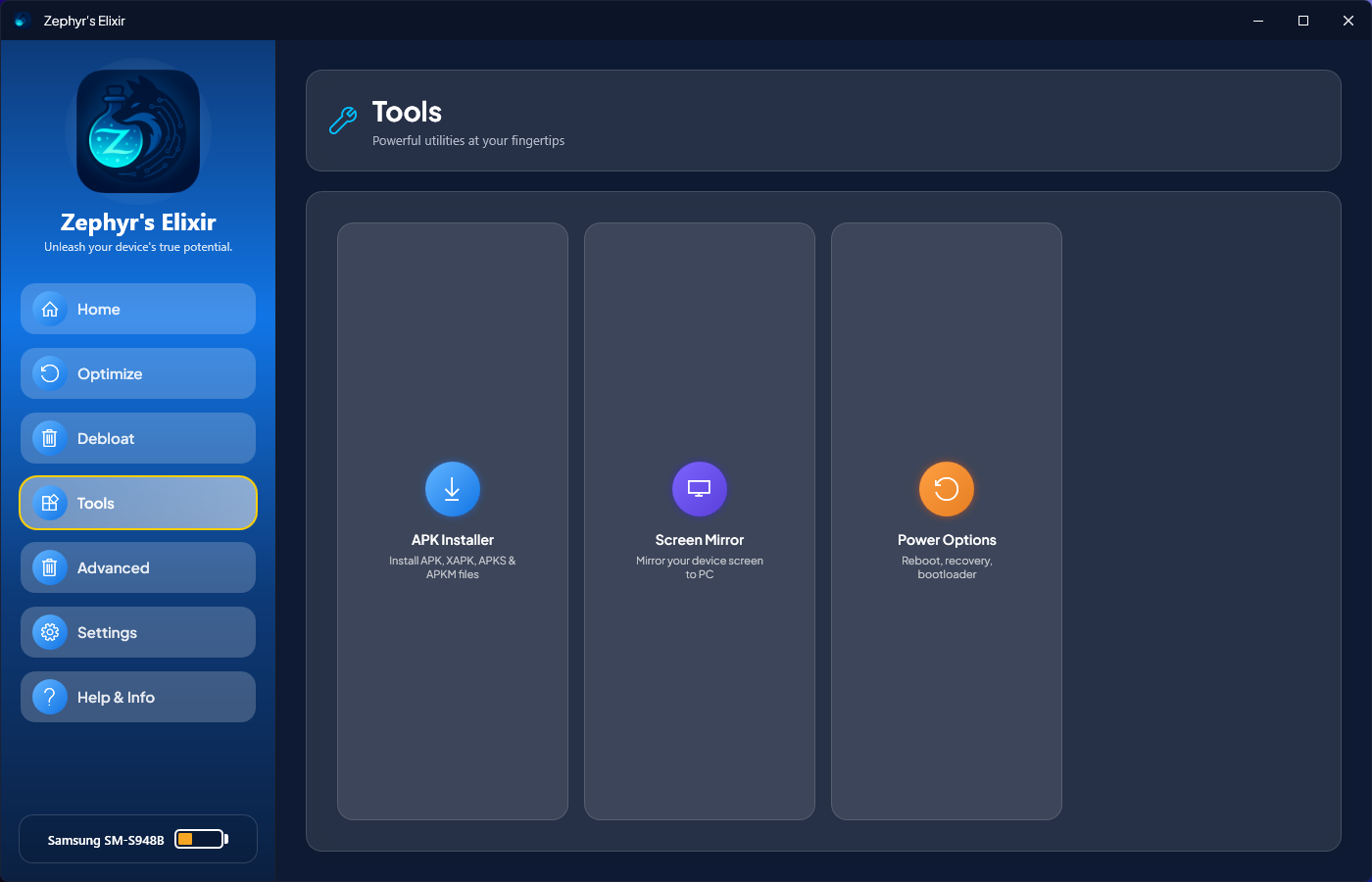
APK Installer
Drag-and-drop APKs onto the window, or click to browse. The installer shows each package's name, version,
and install status, then runs pm install for each in sequence. It handles APK, XAPK, APKS and
APKM files, extracting bundles automatically. On Free, you install one APK at a time; Pro adds multi-APK
install and split-APK bundles in a single operation.
When Android refuses an install, you get the reason in plain language — a signature clash with the copy already on the device, not enough free space, a downgrade, a blocked work profile — instead of a raw error code. Bundles are matched to the phone, so a 32-bit device gets its own split rather than the 64-bit one, and a damaged file is reported and skipped instead of stalling the rest of the queue.
File Manager
A two-pane browser for your device's storage. Navigate the Android filesystem, jump straight to Downloads, Camera or WhatsApp Media from the quick-access list, then push files from the PC or pull them back — no third-party companion app required. Copy, move, rename, delete and change permissions on the device itself, filter a crowded folder as you type, preview images and text without pulling them first, open the properties of any file, and check the storage panel to see where your space actually went.
A few guardrails come as standard: push, pull and paste ask before replacing anything, a folder you aren't allowed to open says so instead of looking empty, an executable pulled from the phone is never launched on your PC — its folder opens instead — and large transfers get the time they need instead of timing out halfway.
ADB Shell
An interactive, multi-tab ADB shell console built right into the app. Run commands by hand against the active device, keep several sessions open at once — rename them so you know which is which — and skip the dance of opening a separate terminal.
Twelve ready-made snippets sit in the side panel — package lists, device model, Android version, battery, memory, top processes, screen size and density, free disk, a logcat dump, a reboot — and any command you keep retyping can join them. Any session can be exported to a text file in one click. Tabs stay pinned to the device you selected, and if a session dies with a disconnected phone, it's restarted quietly when you come back.
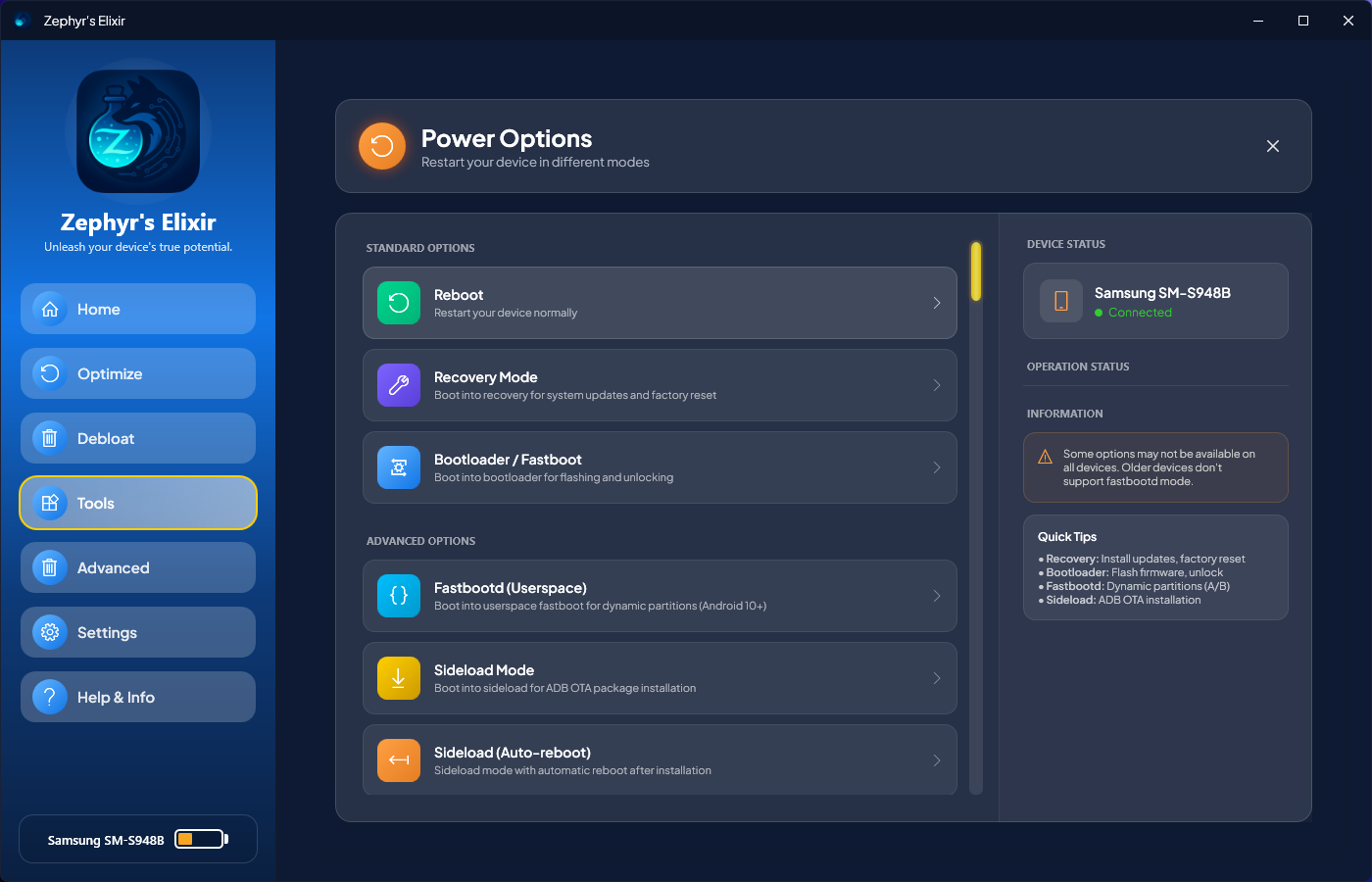
Power Options
A one-click menu to reboot normally, into recovery, into the bootloader, into fastbootd, or to power off — plus Download mode on Samsung devices. Sideload mode is included for applying OTA packages without the usual key combo dance, with a variant that reboots the phone on its own once the package is in. Anything that would take the phone offline asks first, and goes to the device you confirmed on.
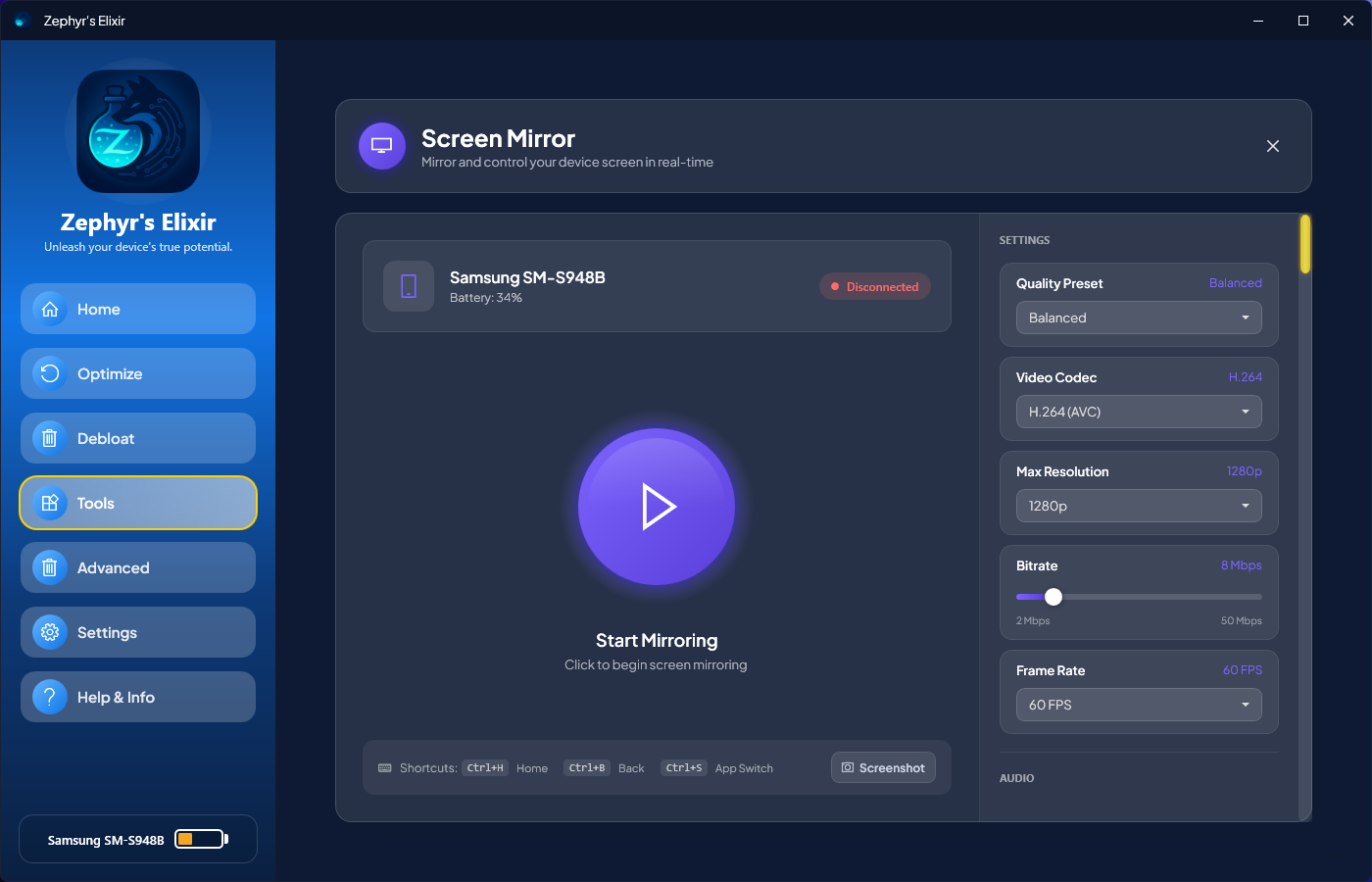
Screen Mirror Pro
The Screen Mirror page opens a low-latency stream of your phone's display inside Zephyr's Elixir, built on scrcpy — downloaded and set up for you the first time you open the page. Control the device with mouse and keyboard, or switch to view-only; record the session, audio included, or grab a screenshot; forward the phone's sound to your PC and share the clipboard in both directions. Home, Back, App Switch, volume, power and rotation sit one click away.
Quality presets, resolution, bitrate, frame rate, video and audio codecs and orientation lock are all adjustable, and the stream stays locked to the device you selected however many are plugged in. The page is delivered by the Pro module and only loads when a valid license is active.
Performance Monitor Pro
A live dashboard of the device's vitals — CPU, RAM, GPU load, frame rate, network throughput, storage I/O and battery, right down to temperature, current and voltage — sampled in real time while you work, with the apps eating the most memory ranked alongside. Hit record and the whole session is written to a CSV you can open in a spreadsheet.
GPU and FPS readings come straight from the kernel and the rendering pipeline, so coverage depends on the chip: Snapdragon, Exynos, Tensor, Dimensity and Mali-based devices are all probed. A reading the phone won't give is shown as missing, never as a reassuring zero. The page scrolls on smaller windows, so every graph keeps its full height. Like Screen Mirror, it is delivered by the Pro module and loads only with an active license.
Advanced
Individual, fine-grained knobs. Every setting here has its own Reset button, Reset all rewinds everything Optimize and Advanced ever changed on this device — even after you close and reopen the app — and the Time Vials shelf keeps a snapshot taken before each operation.
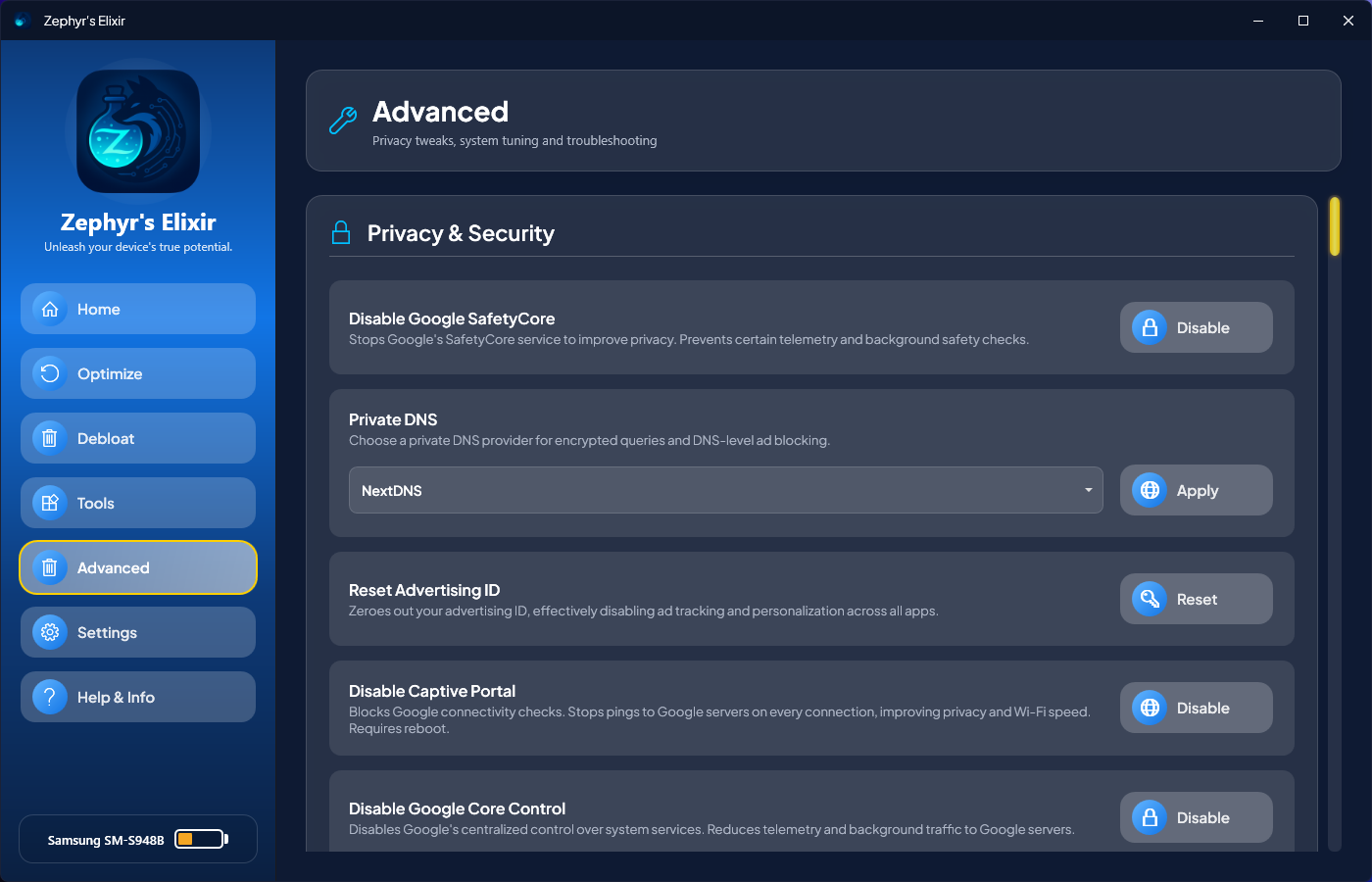
Private DNS
Pick from five curated providers — NextDNS, AdGuard, Cloudflare, Google, Quad9 — or choose Custom hostname and point the phone at your own resolver, a personal NextDNS profile included. Zephyr's Elixir live-pings each choice in the dropdown so you can see real latency before you commit, and your custom hostname is remembered for next time. Apply sets Android's private_dns_mode to hostname and writes the chosen provider.
Animation speed
A single slider drives all three global animation scales (window, transition, animator duration) in lockstep. Drag it toward 0 for a UI that feels instant, leave it at 1.0 for the stock Android feel, or take it up to 2.0 to slow everything down, then press Apply to device. The slider always opens on the speed the phone is actually using.
Time Vials
Zephyr bottles a full snapshot of your device's system settings before every optimization, every recipe and every advanced tweak — pouring an old vial back included — and Bottle now takes one whenever you want. The shelf keeps the last fifteen vials per device, each labelled with what was about to happen: before optimization, before recipe with the recipe's name, before advanced tweak, or bottled by hand.
Open one and you get a plain diff between that moment and now: what changed, what appeared, what disappeared. Tick the lines you regret and press Pour back selected — one setting, a handful, or everything. Identical snapshots are never stored twice, and vials live only on your PC. The vial bottled before the very first change is the one Reset all relies on, so it can't be deleted by accident.
Privacy pack Pro
With the Pro module loaded, the Privacy & Security section of Advanced comes alive: five one-click tweaks, each with its own Reset beside it. If an undo ever fails, the app says so and keeps the Reset available, rather than pretending the phone is back to normal.
- Disable Google SafetyCore — switches off the on-device scanning service introduced in recent Play updates. Nothing to do if your phone doesn't have it.
- Reset Advertising ID — limits ad tracking and zeroes the advertising identifier every app reads.
- Disable Captive Portal — stops Android from pinging Google every time you join a network.
- Disable Google Core Control — reins in Google's centralised control over system services, and the background traffic that comes with it.
- Disable Virtual RAM — turns off the vendor's swap-to-storage feature (RAM Plus, Memory Extension) on Samsung, Xiaomi, OnePlus, Oppo, Realme, Vivo, Huawei and Honor, with a generic profile for everyone else, then reads the values back from the device to confirm it really took. It is offered on phones with at least 5 GB of RAM, where the extra swap only wears the storage.
Troubleshooting & reset
Two single-purpose resets live at the bottom of the page. Reset Battery Simulation hands the real battery level back if a run was interrupted while it was being simulated. Reset Package Compilation throws away every compiled optimization and returns packages to stock — the phone may feel slower for a while, until Android recompiles apps on its own.
Reset all
One button, full rewind. Every optimization, DNS override, animation tweak, package compilation, spoofed battery level, Pro privacy toggle and the auto-rotation Screen Mirror switched off goes back to how the device was before Zephyr's Elixir first touched it. The card counts what is still pending, and a confirmation dialog always comes first.
The count is kept per device and survives closing the app: optimize a phone today, reset it next week. Settings are poured back from the vial bottled before the very first change, so they return to your real previous values rather than a guessed Android default — and anything you changed on the phone yourself in the meantime is left exactly as it is.
Settings
App preferences, diagnostic tools, and license management.
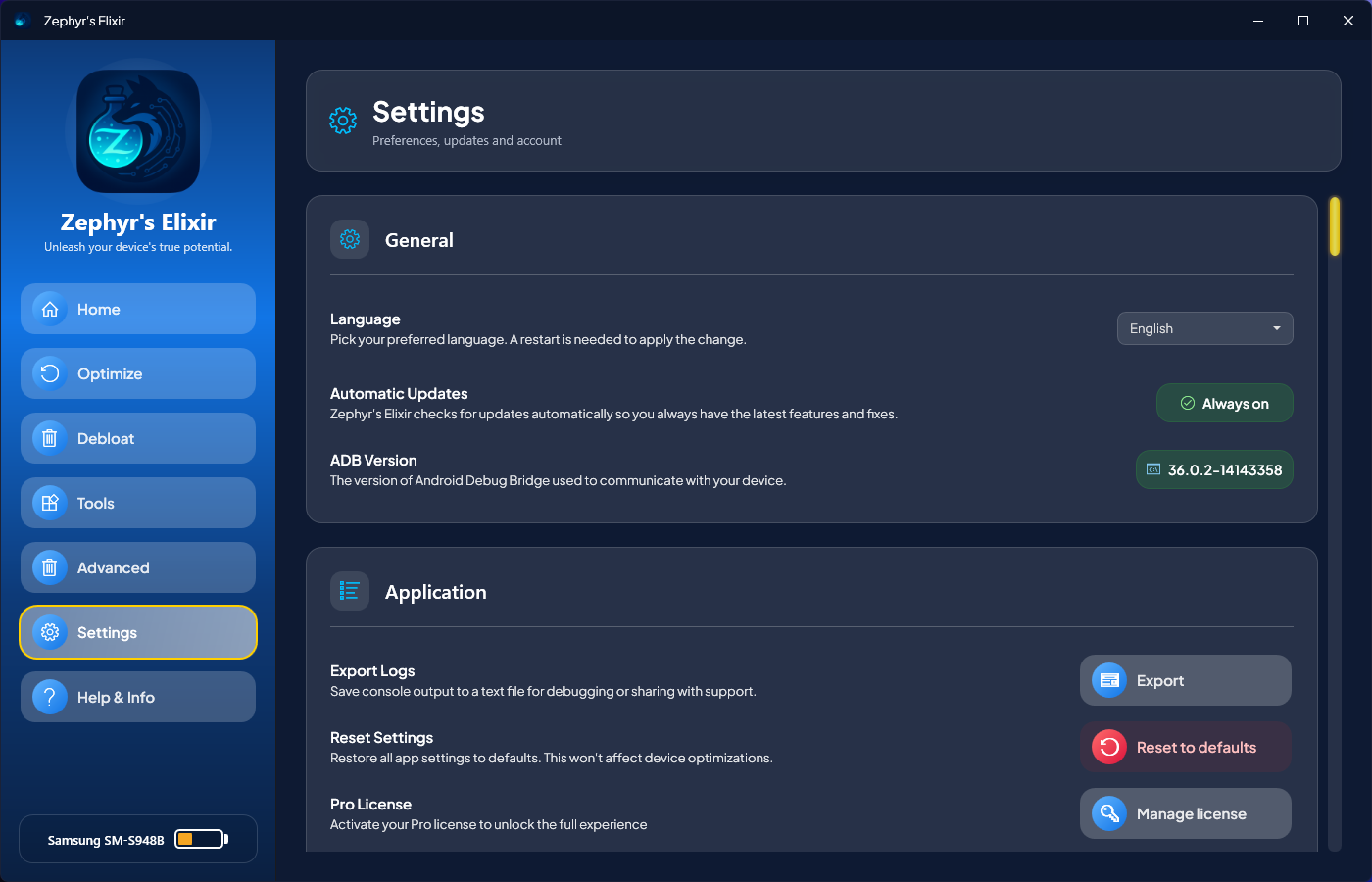
General
Switch the interface between English and Italiano — both are written by hand, not machine-translated, and the change applies instantly, with no restart. Automatic updates are always on, so every install stays on the build that carries the latest fixes. AI analysis is where you turn the cloud safety ratings in Debloat on or off after the first prompt. The bundled ADB version is shown here too, so you always know which build is talking to your phone.
Application
Export logs writes the diagnostic log to a text file — always do this before you share a run with someone else. Reset settings puts the app's own preferences back to default — the interface language, the AI analysis choice and your saved custom DNS — and leaves your license, recipes, backups and every change on your device untouched. Pro License opens the license dialog, where you activate or deactivate a key.
About
Opens the full license agreement and the privacy policy, in the app, whenever you want to read exactly what you agreed to.
Zephyr's Elixir Pro Pro
Pro is an unlock, not a rewrite. Free already ships the complete product for most users — Pro adds the deeper knobs some people want.
Open-core architecture
The free app — the one you're using — is the whole product. The Pro module is distributed as a separately signed DLL that the app downloads and verifies at runtime: public-key token match, AES-GCM-encrypted at rest, decrypted in memory only when loaded and never written to disk in the clear.
What Pro adds
- Extreme optimization: the deeper pass on the Optimize page — and as a step inside your recipes.
- Performance Monitor: live CPU, RAM, GPU, FPS, network, storage and battery, with CSV session recording.
- Screen Mirror & recording: low-latency streaming and desktop control inside the Tools hub.
- Privacy pack: the five privacy toggles in Advanced, usable as recipe steps too.
- Unlimited AI scans: the cloud safety analyzer in Debloat has its 25-per-day cap lifted.
- Advanced APK Installer: batch install and split-APK bundle support, in the installer and in recipes.
- Local APK backups: uninstalled apps are saved to your PC first, split bundles included.
- Priority support: your questions go to the front of the queue.
How to activate
Go to Settings → Pro License and click Manage license. Paste the Z-key you
received at purchase (format Z-XXXXXX-XXXXXXXX-XXXXXXX), click Activate, and Zephyr's Elixir downloads the signed Pro module and verifies its public-key token before loading — no restart needed. Activation binds to this PC and works offline for up to seven days between online re-validations.
Moving to another PC
Press Deactivate License in the same dialog, then activate on the new machine. If the old PC is gone, you don't need to write to anyone: a binding nobody has checked in on for 14 days releases itself, and a freshly reinstalled Windows can reclaim its own seat straight away — once every 14 days, so a licence can never be Pro on two machines at once.
When a subscription ends
A cancelled subscription stays fully Pro until the end of the period you paid for. After that, the Pro module is removed and the app carries on as the free edition — but your key stays where it is. Renew, and Pro comes back on its own: the module downloads and loads again by itself, with nothing to retype. An outage on our side never counts against you, and neither does a week without internet; only a real answer about your licence changes anything.
Troubleshooting
The short list of things that can go wrong, and the fixes that solve almost all of them.
Connection issues
Device not detected
By far the most common issue, and almost always one of a handful of causes. Work through them in order:
- Swap the USB cable — charge-only cables are the usual suspect.
- Check if the screen is awake and waiting for the Allow USB debugging prompt.
- In Developer options, tap Revoke USB debugging authorizations, unplug, and plug back in to force a new prompt.
- Try another USB port — front-panel and hub ports are less reliable than the ones on the motherboard.
- If the phone is listed but marked unauthorised in the device switcher, the prompt is still waiting on its screen.
Wireless connection fails
Ensure both devices are on the exact same Wi-Fi network — not a guest network, and not behind a VPN. Some routers isolate guests or keep the 5 GHz and 2.4 GHz bands apart. Make sure you're using the port shown in the Pair device with pairing code dialog, not the primary debug port on the Wireless debugging screen, and if the code has gone stale, close that dialog and open it again for a fresh one. On Android 10 and below, plug in over USB once before connecting, so the phone can start listening. Corporate networks sometimes block the mDNS traffic ADB relies on to connect after pairing; a personal hotspot is a reliable fallback.
Optimization issues
The pipeline gets stuck
Look at the Console first: if it's still scrolling, the run is fine — package compilation in particular takes a long time on a phone with many apps, and far longer in Extreme. If the Console hasn't moved in more than a minute, press Stop, reboot the device, and start a fresh run. Stopping is always safe: what already ran stays applied, and Reset all in Advanced still knows about it. If the phone drops off halfway, the run stops by itself.
Debloat issues
The app list stays empty
Press Load apps again. If the list still doesn't fill, the device is likely disconnected or asleep — wake the screen and check that the sidebar still shows its name. A successful load always updates the summary line under the page title with the number of apps it found: total, system, user and disabled.
I disabled something I shouldn't have
Disabled apps are never actually removed: switch the Disabled filter on, select them, and Enable brings them straight back. If you uninstalled it instead, open the History tab in Debloat and hit Restore on the affected package — or select several and restore them together. The cloud safety analysis flags packages tagged as Critical up front, exactly to prevent this situation.
Recipes
The Community tab says it can't be reached
The community library is the only part of Recipes that needs the internet. Everything else — your own recipes, editing, running them — works entirely offline. Check your connection and press Retry; nothing in your library is affected either way.
A step was skipped during a run
Recipes tell you exactly why. Extreme optimization, the privacy toggles and multi-APK installs need an active Pro licence: without one they're reported as skipped instead of failing the run. An install step also needs its APK files still present on this PC — a shared recipe carries their names, not the files themselves.
I want a shared recipe taken down
Open it in your library and choose Unpublish. Deleting a published recipe locally removes the online copy too. Only the install that published it can remove it.
Advanced issues
Private DNS won't apply
Some carriers override DNS on mobile data — toggle Wi-Fi on to confirm the setting took effect. If a hostname won't resolve, Zephyr's Elixir will show the error inline. Press Reset on the DNS card to switch Private DNS off and clear the hostname, handing resolution back to your network.
The animation slider doesn't move
The slider is disabled whenever no device is connected — the sidebar will confirm this. Reconnect and it becomes interactive immediately, already set to the speed the phone is using. Remember that moving it changes nothing until you press Apply to device.
Anything else
Export the diagnostic log
From Settings → Export logs, save the diagnostic log to a text file. It holds a timestamped record of the latest commands sent to your device, the output of any that failed, and the warnings and errors along the way — with licence keys and personal paths stripped out — so it is safe to attach when you ask for help.
Reset everything
Advanced → Reset all undoes every change Zephyr's Elixir applied to this device through Optimize, Advanced and the mirror's Rotate button, no matter when you made it. It is the big red button, and it is safe: all it does is put back the values the device had before, read from the snapshot bottled at the time. When you want finer control, a Time Vial lets you pour back one setting at a time.
Tips & shortcuts
Don't overdo it
There's no harm in running the pipeline as often as you like, but once a month is enough for most people. Running it after large OS updates is especially worthwhile.
Glance at the battery
The sidebar battery indicator isn't decoration — it refreshes live from the device. Use it as a glanceable sanity check that the connection is still healthy.
Read the Console
Every stage, every app it stops, every megabyte it frees — as it happens. When something feels wrong, look there before anywhere else, then export the log from Settings for the commands behind it.
History = undo
The History tab inside Debloat records every uninstall. A single click restores. On Pro, the original APK is backed up locally first.
Write it down once
The second time you do something to a phone, make it a recipe. Setting up a new device, helping a relative, or starting over after a factory reset then costs one tap instead of an evening.
Read the diff
After a big run, open the newest vial in Advanced. It's the clearest possible answer to "what did that actually change?" — and every line can be poured back on its own.
Frequently asked questions
Will this void my warranty?
No. USB debugging and ADB are official Android features shipped by Google, enabled the same way any user would enable Developer options. Nothing Zephyr's Elixir does trips the factory warranty flags.
Do I need root or an unlocked bootloader?
No. The entire application is built around the standard unprivileged ADB shell user. You just need a USB cable and two minutes to turn on Developer options.
Which Android and Windows versions are supported?
Android 7.0 and newer on the phone, Windows 10 (64-bit) or newer on the PC. Wireless works on both sides of Android 11: the pairing-code flow on Android 11 and up, the classic handshake after one USB connection on Android 10 and below.
What exactly does the Optimize button do?
A seven-stage pipeline of 120 tracked steps runs: cache cleanup, memory triage, deep storage clean, network tuning, system tuning, package compilation, and DEX optimization. Each stage sends a sequence of standard ADB shell commands: the Console narrates them as they run, and the diagnostic log you can export from Settings records the commands themselves.
How often should I run it?
Once a month is plenty for most users. Running it after a major Android update or after installing many new apps gives the package compiler something to work with and tends to show a bigger improvement.
Where do I find the logs if I need to share them?
The live feed is in the Optimization Console on the Optimize page. Settings → Export logs writes the diagnostic log — the latest commands sent to your device, the output of any that failed, and the warnings and errors along the way, with licence keys and personal paths stripped out — to a text file you choose. Attach that file when asking for help.
Does Zephyr's Elixir collect any data?
No. There is no telemetry, no analytics and no account. The app only reaches the network when it works for you: checking for updates, checking your licence key if you activate Pro, loading the community library if you open that tab, and — once you have accepted the AI analysis prompt — sending the package names of the apps on your device, with a pseudonymous install ID and never anything that names you, to the cloud analyzer when the Debloat list loads. Decline that prompt, or turn it off in Settings, and no package name is ever sent. Everything else — including your recipes and your Time Vials — stays on your PC unless you press Share.
What is a recipe, exactly?
A small file that describes what you want done to a phone: an optimization, a list of apps to remove or disable, tweaks like Private DNS and animation speed, and APKs to install. Press Run, pick your devices, and it replays all of it in order — the same way, every time. Recipes can be exported, imported and shared with the community. See section 08.
What are Time Vials?
Automatic snapshots of your device's system settings, taken before every optimization, recipe and advanced tweak. Open one to see exactly what changed since that moment, and pour back any setting you regret. Fifteen are kept per device, on your PC only. A handful of keys — USB debugging among them — are shown but never rewritten, because restoring those would cut the connection the app is working over.
Can I work on several phones at once?
Yes. Connect as many as you like and switch between them from the device card in the sidebar — every screen follows the one you pick, so a command can never land on the wrong phone. Recipes are the exception by design: there you choose several targets on purpose, and they run in parallel.
Why did an APK installation fail?
Two common causes: the APK's signature conflicts with a version already on the device (uninstall the existing copy first), or the APK's minSdkVersion is higher than the device's Android version. The installer reads the error pm install returns and tells you, in plain language, which case you're in.